How to Scan Documents to PDF on Android for Free (5 Ways)
To scan a document to PDF on Android, open Google Drive, tap the camera button, point it at the page, then save it as a PDF. It's free, it adds no watermark and most phones already have the app. Don't want it online? Files by Google does the same and keeps the PDF on your phone.
- Save online: Google Drive, camera button, scan, Save
- Save on the phone: Files by Google, Scan, Done
- Samsung: point the camera at the page and tap Scan
- Photos you already took: Image to PDF, in your browser
- More pages: tap Add before you finish
Which way is best?
| Way | Saves as | Where it goes | Best for |
|---|---|---|---|
| Google Drive | PDF or JPG | Your Google Drive | Opening it on a computer, sharing a link |
| Files by Google | Your phone | Private papers, no internet | |
| Samsung camera | Picture, or PDF on newer software | Your phone | A quick page |
| Other phone cameras | Usually a picture | Gallery | A quick page |
| Photos to PDF | Your phone | Pictures you already have |
You don't need CamScanner or another scanner app. If you used Microsoft Lens, it was shut down in early 2026, and new scans stopped in March. Any way on this page can replace it.
1. Scan with Google Drive
- Open the Google Drive app.
- Tap the camera button at the bottom right.
- Point the phone at the page. A blue line shows what will be kept.
- Take the photo, or let Auto capture do it. Switch to Manual if it goes too fast.
- Fix it if you need to: Crop & Rotate, Filter for grey or colour, Clean for stains and fingers.
- Tap Add for another page, or Retake.
- Tap Done, type a name, choose .pdf and a folder, then tap Save.
Google says these PDFs are searchable, so you can find a letter later by a word in it. To send it, open the menu beside the file. Share sends a link, and Send a copy sends the file itself.
Add the Drive scan widget to your home screen and pick a folder. Good for receipts.
2. Scan with Files by Google
Use this when you don't want the paper online.
- Open Files by Google. Update it from Google Play if you see no scan button.
- Tap Scan at the bottom right.
- Hold the phone over the page, or tap to take it yourself.
- Tidy it with Crop, Filter or Clean, and tap Add for more pages.
- Tap Done. It's saved as a PDF.
Look under Recents, or in Documents and then Scanned. Can't find it? Search for pdf in the app.

3. Scan with a Samsung Galaxy
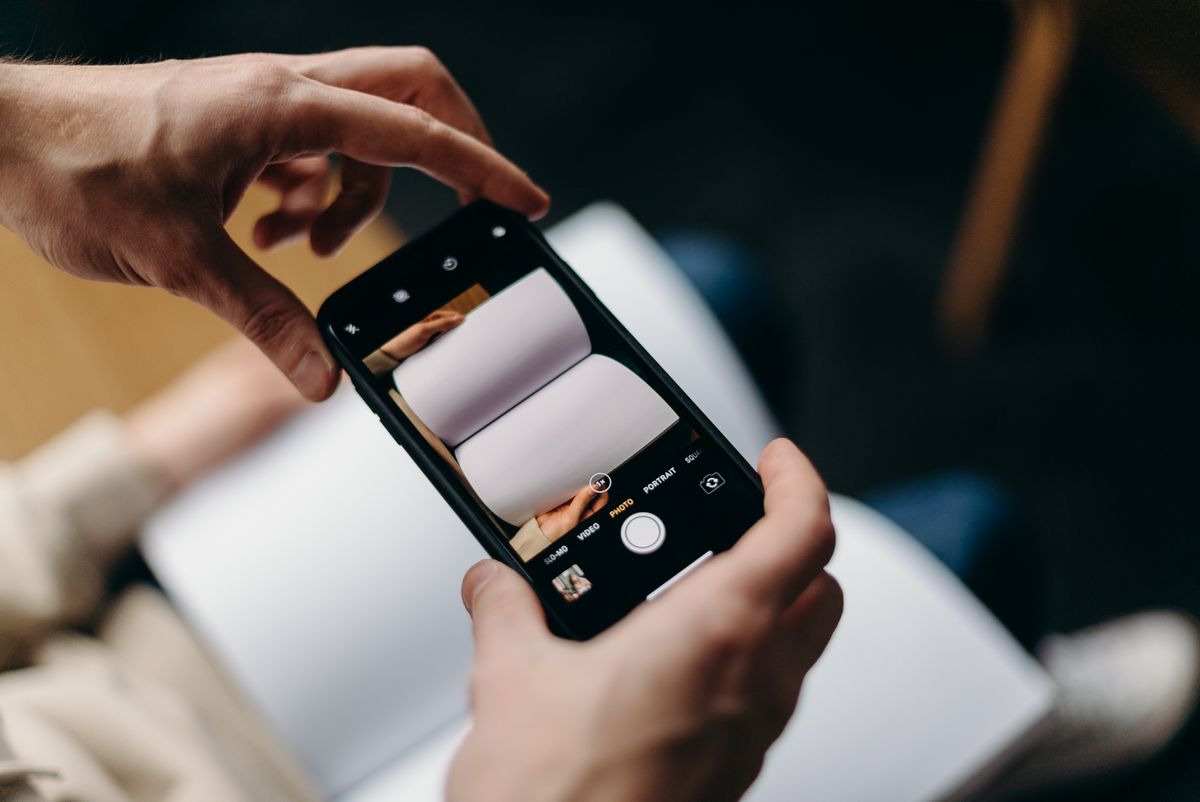
- Open the Camera and line up the page.
- Tap Scan when the button appears.
- Check the edges and tap Save.
On many Galaxy phones this makes a picture. Newer software, One UI 8.5, has a document mode that puts several pages into one PDF. It came with the Galaxy S26 and was announced for the S25 and other recent top models. No Scan button? Look for Scan documents in the camera settings.
4. Other phone cameras
Xiaomi, Redmi and POCO phones often have a Documents mode under More. Vivo, OPPO and Realme may call it Document or Scan. On Pixels, use Drive or Files. These modes usually save a picture, so use the next step if you need a PDF.
5. Make a PDF from photos you already have
- Open Image to PDF in Chrome.
- Choose your photos and swipe to check the order. Turn any that are sideways.
- Pick A4 or US Letter and save.
It works in the browser, so the photos stay on your phone. Cut off the table around the page first with Crop image.
The new Drive scanner in 2026
In May 2026 Google began rolling out a new scanner. You hold the phone over each page and it captures several in a row, almost like a video. It can swap a blurry page for a sharper one, skip a page it already has, and pause when you ask. It needs a phone with at least 8 GB of memory. If your screen looks different from these steps, you may have the new one, or an older app version. The steps are nearly the same.
Join, sign, shrink or lock the PDF
A scan is often only half the job. These free tools run in your browser and don't upload the file:
- Too big for email? Compress PDF.
- Several scans, one file? Merge PDF also turns and deletes pages.
- Needs a signature? Sign PDF.
- Crooked or wide edges? Crop PDF.
- Private? Protect PDF adds a password.
Tips for a clean scan
- Dark table, white page. The app finds the edges faster.
- Daylight from the side. Turn off the flash. It leaves a white spot on shiny paper.
- Hold the phone flat above the page and wait a second for it to focus.
- Flatten folds. Put a book on the paper for a minute.
- Use grey or black and white for text, and colour for stamps and photos.
- Zoom in before you leave. If you can't read the smallest line, nobody else can.
- Wipe the lens. It fixes more blurry scans than any setting.
Scanning ID and private papers
- Use Files by Google, so nothing goes online by itself.
- Write what the copy is for across it, such as "For flat rental, Nov 2026". Number pages can add a watermark.
- Send it only to people and offices you trust, and delete it when you're done.
- Don't upload ID to a website you don't know.
On an iPhone
Open Files, tap the three dots and choose Scan Documents. Or open a note in Notes, tap the attachment button and choose Scan Documents. Both make a PDF with several pages.
Common questions
Does Android have a built-in scanner?
Most phones have Google Drive, Files by Google or both, and each has a free scanner.
Is scanning with Google Drive free?
Yes. The PDF counts toward your free Google storage, which Drive, Gmail and Photos share.
How do I scan several pages into one PDF?
Tap Add after each page and Done at the end. For scans you already saved, use Merge PDF.
Can I scan without internet?
Files by Google can save to your phone without it. Drive needs a connection to upload.
Can I edit the text in a scan?
Not directly, because the page is a picture. In Drive on a computer you can open the PDF with Google Docs, which tries to turn it into text. Check it carefully.
Why is my scan blurry?
Usually low light, a moving hand or a dirty lens. Move to a window and take it again.
Is a phone scan good enough for official forms?
Often, but some offices want a certified copy or a flatbed scan. Check their rules.
What replaced Microsoft Lens?
Microsoft points people to the scanner in OneDrive. Google Drive and Files by Google do the same job on Android.
Use Google Drive if you want the PDF online and Files by Google if you want it only on your phone. Both are free and have no watermark. Add pages before you finish, check the small print, then shrink, sign or lock the file if you need to.
Sources: Google Drive Help, 9to5Google, Android Authority, Samsung, Windows Central. Also read: free up phone storage and make a photo smaller.


Comments
Post a Comment